Embed PlantUML diagrams in Notion
PlantUML turns text into diagrams. You can show a diagram inline in Notion by adding the rendered SVG to an Image block. The diagram stays sharp when resized, and its URL lets you reopen the source in the PlantUML editor.
1. Render the Diagram as an SVG
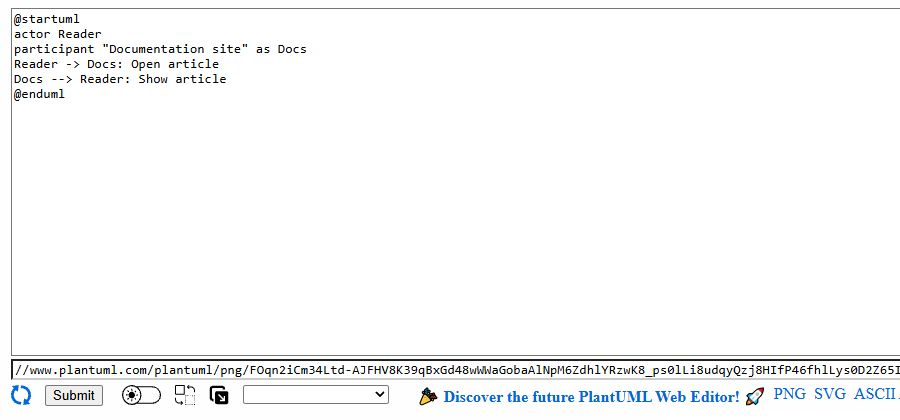
Open the PlantUML online editor . For a quick test, paste this sequence diagram:
@startuml
actor Reader
participant "Documentation site" as Docs
Reader -> Docs: Open article
Docs --> Reader: Show article
@enduml
Render the diagram and select SVG. Copy the URL from the SVG page. Use the address with /plantuml/svg/ in it. The /plantuml/uml/ address opens the editor rather than returning the image.
2. Add the SVG to Notion
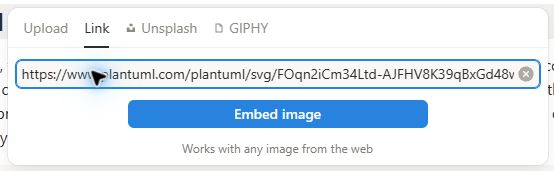
In Notion, type /image and choose Image. Select the Link tab, paste the SVG URL, and choose Embed image. Once the diagram appears, drag its edges to resize it if needed. If it doesn’t load, open the SVG URL in a browser to check that it returns the image without a sign-in. For an image that can’t be fetched by URL, render it locally and upload the file instead.
3. Edit an Existing Diagram
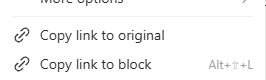
Hover over the diagram, open the three-dot menu, and choose Copy link to original. Paste that URL into your browser. In the address bar, replace the /svg/ segment with /uml/, leaving the encoded part unchanged. Make your changes in the PlantUML editor, render the diagram, and copy the new SVG URL. Replace the image link in Notion with that URL. Editing the source produces a new URL; the old embed won’t update on its own.
Example: a UML Use-Case Diagram
@startuml
left to right direction
actor Reader
actor Editor
rectangle "Documentation portal" {
  usecase "Browse articles" as Browse
  usecase "Search documentation" as Search
  usecase "Publish articles" as Publish
}
Reader -- Browse
Reader -- Search
Editor -- Publish
@enduml
4. Keep Private Diagrams off Public Renderers
PlantUML URLs contain encoded diagram source. It can be recovered, so use public renderers and public image links only for diagrams you can share. For sensitive material, use an approved private renderer or render locally and upload to a page with the appropriate access. If you need a PNG that does not carry the original PlantUML source in its metadata, render locally with -nometadata.
PlantUML Server documentation · Notion image blocks
Author: Herman Schoenfeld